

Students rely on charged devices all day.
Laptops handle notes, phones track schedules, tablets hold textbooks, and earbuds keep study sessions focused. When a device charges slowly, the problem can throw off your whole routine.
The frustrating part comes from how simple the cause can be. A weak cable, the wrong wall adapter, or a cluttered charging port can make your device crawl from 12 percent to 30 percent while you’re trying to leave for class. Explore USB-C charging mistakes that slow devices so you can avoid making them.
Using the Wrong Cable
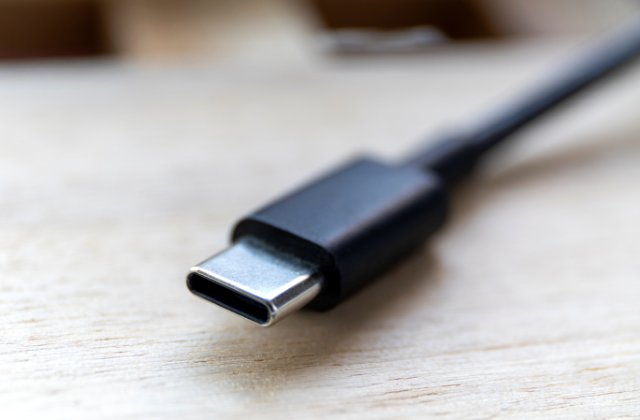
USB-C ports may look the same, but USB-C cables don’t all work the same way. Some cables only support basic charging, while others support faster power delivery. A cheap cable from the bottom of your backpack might charge your phone overnight, but that same cable may struggle with your laptop before a morning lecture.
Understanding USB-C cables helps you match the cable to the device. A laptop usually needs a cable that can handle higher wattage. A phone may need less power, but it still charges faster with a quality cable and the right adapter. When you use the wrong cable, your device may charge slowly even when the charger looks powerful.
Grabbing Any Wall Adapter
Many students mix and match chargers without thinking about power output. A tiny phone adapter may fit your laptop cable, but that doesn’t mean it can charge a laptop well. Your device pulls only the power the adapter can provide, so an underpowered adapter slows everything down.
Check the wattage printed on the adapter. A laptop often needs much more power than a phone. A tablet may need more power than a small adapter can deliver during active use. When you study, stream lectures, or work on a project while plugged in, the device may use power almost as fast as the adapter provides it. That’s why the battery percentage barely moves.
Charging Through Weak Hubs
USB-C hubs can help students connect monitors, keyboards, drives, and other accessories. Some hubs also allow pass-through charging. However, not every hub handles charging efficiently. A low-quality hub can limit how much power reaches your laptop or tablet.
If your device charges slowly through a hub, plug the charger directly into the device and compare the speed. You may notice a clear difference. Hubs also heat up during use, especially when they handle video, data, and charging at the same time. Extra heat can make your device manage power more cautiously, which slows charging even more.
Ignoring Dirty Ports
Backpacks collect lint, crumbs, dust, and mystery debris. Your USB-C port can collect that same junk. When debris blocks a tight connection, your cable may not seat fully. The device might charge on and off, charge slowly, or fail to recognize the charger.
Look inside the port with a light before you blame the cable. Don’t jam metal objects into the port. Use a safe cleaning method and follow your device brand’s recommendations. A clean port gives the cable a better connection and helps your charger work the way it should.
Using the Device Too Hard While Charging
Charging slows down when your device handles heavy tasks. Gaming, video editing, large downloads, and high screen brightness all pull power. If your laptop feels hot while plugged in, the battery may charge more slowly because the device needs to manage heat.
Students often plug in at the library and keep working at full speed. That approach makes sense when deadlines hit, but it can slow the charge. Lower the screen brightness, close unused apps, and pause heavy downloads when you need battery life fast. Small changes can help your charger make more progress between classes.
Waiting Too Long To Replace Gear
Cables bend, twist, fray, and weaken over time. Adapters also wear down after daily use in dorm rooms, coffee shops, classrooms, and study lounges. If a cable only charges at one angle or disconnects when you move the device, replace it.
A worn cable can waste your time and put your device at risk. Keep one dependable charger in your bag and one in your room if you can. That setup helps you avoid borrowing random chargers that may not fit your device’s power needs.
Charge Smarter During Busy Days
Slow charging doesn’t always mean your device has a serious problem. Most of the time, students can fix the issue by avoiding making the above USB-C charging mistakes. When you build better charging habits, your phone, tablet, or laptop stays ready for class, study groups, and everything else packed into your day.
Image Credentials: Joeri, # 335299863
end of post … please share it!
| envato.com |
private student loans: when you need a little extra to pay for college


Comments